Yes — this is a perfect use for NotebookLM video overview, and this will actually be much more professional than an avatar for your CSC meeting.

You want a 60–90 second narrated slideshow that explains the Annual Report Assistant / Digital Operating System for Nonprofits concept.

Below is exactly how to structure it and the big background prompt you can paste into NotebookLM as a source document so it understands the system.


First — Video Structure (Very Important)

Your video should follow this story:

Video Flow

  1. The Problem
  2. Information is scattered
  3. The System collects data all year
  4. Monthly reminders
  5. Data sources (numbers, donors, finances, photos)
  6. End of year → Generate Annual Report
  7. Finished Annual Report
  8. Bigger vision → Digital Operating System for Nonprofits

That will make a very clear, logical video.


Slide-by-Slide Video Outline (60–90 seconds)

Slide 1 — Title

Annual Report Assistant
Reducing Administrative Burden So Nonprofits Can Focus On Families


Slide 2 — The Problem

Nonprofits spend many hours each year creating:

  • Annual reports
  • Grant reports
  • Board reports
  • Impact reports

Most of the information already exists, but it is scattered across spreadsheets, emails, documents, and photos.


Slide 3 — Information Is Scattered Everywhere

Show icons or labels:

  • Program spreadsheets
  • Financial reports
  • Donor lists
  • Board lists
  • Photos
  • Success stories
  • Event notes

This is very relatable.


Slide 4 — The Solution

Annual Report Assistant

A simple system that collects important information throughout the year.


Slide 5 — Monthly Data Collection

Each month the system reminds the organization to record:

  • Number of children served
  • Number of families served
  • Volunteers and volunteer hours
  • Major highlights and events
  • New donors and partners
  • Financial summary
  • Success stories
  • Photos

This is very important — especially photos like you said.


Slide 6 — Data Sources Stored in One Place

The system stores:

  • Impact Numbers
  • Financial Summary
  • Donors & Partners
  • Board & Staff
  • Programs
  • Success Stories
  • Photos

This becomes the organization’s Annual Report Database.


Slide 7 — End of Year

At the end of the year:
Click “Generate Annual Report”

The system automatically creates:

  • Letter from Director
  • Year Highlights
  • Programs
  • Impact Numbers
  • Financial Summary
  • Donors & Partners
  • Board & Staff
  • Success Story
  • Looking Ahead
  • Thank You Page

Slide 8 — Finished Annual Report

Professional report with:

  • Photos
  • Charts
  • Impact numbers
  • Financial summary
  • Donor recognition
  • Program descriptions
  • Success stories

Slide 9 — Big Vision

This is part of a Digital Operating System for Nonprofits

Helping with:

  • Communications
  • Client Services
  • Operations
  • Funding
  • Reporting
  • Annual Reports

Reducing Administrative Burden So Nonprofits Can Focus On Families

Perfect ending slide.


Now — NotebookLM Background Document (Paste This Into NotebookLM)

This is important. NotebookLM works best when you give it a source document describing the system.

You can paste the following into a Google Doc and upload it to NotebookLM.


NotebookLM Background Document – Annual Report Assistant

Title: Annual Report Assistant – Digital Operating System for Nonprofits

Nonprofit organizations spend many hours each year preparing annual reports, grant reports, board reports, and impact reports. Much of the information needed for these reports already exists, but it is often scattered across spreadsheets, emails, documents, and photos. Staff members must spend significant time gathering this information and organizing it into reports.

The Annual Report Assistant is part of a Digital Operating System for Nonprofits. The purpose of this system is to reduce administrative burden and help nonprofit organizations focus more time on serving children and families.

The Annual Report Assistant works by collecting important information throughout the year instead of waiting until the end of the year. Each month, the system reminds staff to record key information such as program statistics, number of children served, number of families served, volunteers, volunteer hours, major events, highlights, donors and partners, financial summaries, success stories, and photos.

The system stores this information in a structured database. The main data categories include Impact Numbers, Financial Summary, Donors and Partners, Board and Staff, Programs, Success Stories, and Photos. By collecting this information throughout the year, the organization builds a complete record of its activities and impact.

At the end of the year, the organization can click a button to generate the annual report. The system uses a standard annual report template that includes the following sections: Cover Page, Our Mission, Letter From Director, Year Highlights, Programs, Impact Numbers, Success Story, Financial Summary, Donors and Partners, Board and Staff, Looking Ahead, and Thank You.

The system automatically compiles the stored information and generates a draft annual report that includes text, charts, tables, photos, and donor recognition. This reduces the time required to produce an annual report from weeks to hours.

This Annual Report Assistant is one example of a larger concept called a Digital Operating System for Nonprofits. This system would include tools for communications, client services, operations, funding, reporting, and annual reports. The goal is to reduce administrative work so nonprofit staff can spend more time helping people and less time on paperwork and reporting.


After You Upload That To NotebookLM

Then ask NotebookLM something like:

Prompt for NotebookLM Video

Create a 60–90 second narrated slideshow explaining the Annual Report Assistant for nonprofit organizations. The slideshow should explain the problem nonprofits face when creating annual reports, how information is collected throughout the year, what data is stored, and how the system generates a finished annual report automatically. The final slide should explain that this is part of a Digital Operating System for Nonprofits that reduces administrative burden so nonprofits can focus on families.


Very Important — Include Photos Section

You were absolutely right to mention this.

Add this concept to your system:

Annual Report Photo Library

Throughout the year they upload:

  • Program photos
  • Event photos
  • Volunteers
  • Staff
  • Facilities
  • Clients (with permission)
  • Workshops
  • Food distribution
  • Tutoring
  • Counseling
  • Community events

Then the annual report automatically pulls photos into:

  • Cover page
  • Program pages
  • Success story
  • Highlights
  • Donor events

Photos are extremely important for nonprofit reports.


Final Structure of Your Annual Report Data Sources

This is the clean structure for your system:

Data Source Used For
Impact Numbers Impact section
Financial Summary Financial section
Donors & Partners Recognition section
Board & Staff Organization section
Programs Program pages
Success Stories Story page
Photos Throughout report
Year Highlights Highlights section
Director Letter Intro letter
Looking Ahead Future section

This is actually a very clean system.


Big Picture

You are now showing CSC:

Not just:

  • voice agent
  • intake form
  • grant coach
  • annual report writer

You are showing:

A Digital Operating System for Nonprofits

And that is a very big, very compelling idea.

Here is how I would structure your exact 10-slide flow for the meeting with:

  • Children’s Services Council
  • Boys & Girls Club
  • Families of the Treasure Coast

This is important: This is not a tech presentation. This is a vision + demos + pilot proposal.


The 10-Slide Flow (Very Important)

Slide 1 — Title / Big Idea

AI Assistants to Help Nonprofits Serve More Families
and Reduce Administrative Burden

Subtitle:
Exploring Pilot Opportunities with
Children’s Services Council of St. Lucie County

Keep this clean and simple.


Slide 2 — The Reality Nonprofits Face

This slide should connect emotionally and operationally.

Nonprofits spend time on:

  • Reports
  • Grants
  • Intake forms
  • Phone calls
  • Emails
  • Scheduling
  • Social media
  • Volunteer coordination
  • Data tracking

Time spent on administration = Less time helping families

This sets up your entire pitch.


Slide 3 — Two Types of AI Assistants

This slide is very important structurally.

AI Assistants Can Help In Two Areas:

Administrative / Operations

  • Voice FAQ Agent
  • Annual Report Assistant
  • Program Impact Report Assistant
  • Grant Writing Assistant
  • Volunteer Matching
  • Social Media Writer

Program / Youth / Family Support

  • Career Planning App
  • Personalized Tutor
  • Teen Mentor (JB Mentor)
  • Parent Coaching Agent
  • Emotional Check-In Mentor
  • Career Discovery Coach

This slide organizes everything and prevents confusion.


Slide 4 — Communications Demo

Example: Voice FAQ Assistant

This is where you demo the phone call.

Explain:

  • Answers common questions
  • After hours
  • Reduces phone workload
  • Helps families get information quickly

Live demo if possible.

This will impress them a lot.


Slide 5 — Client Services Demo

Example: Intake Assistant

Show:

  • House of Hope intake form
  • Digital guided intake assistant

Explain:

  • Helps families complete applications
  • Reduces paperwork
  • Improves data collection
  • Saves staff time

This is very practical and easy to understand.


Slide 6 — Operations Demo

Example: Annual Report Assistant

Explain:

  • Collect information throughout the year
  • Impact numbers
  • Financial summary
  • Donors
  • Board & staff
  • Photos
  • Success stories

Then:
Click Generate Annual Report

This is a strong Operations example.


Slide 7 — Funding Demo

Example: Grant Coach

Explain:

  • Helps find grants
  • Helps write grant narratives
  • Helps gather required information
  • Helps create impact reports for grants

Nonprofits will love this one.


Slide 8 — Program Support Tools

Now switch to Boys & Girls Club and Families of the Treasure Coast.

Show:

  • Career Planning
  • Tutor
  • Teen Mentor (JB)
  • Parent Coaching
  • Emotional Check-In Mentor
  • Career Discovery Coach

Explain:
These are tools that help program participants, not just nonprofit staff.

This is important because now everyone in the room sees something relevant to them.


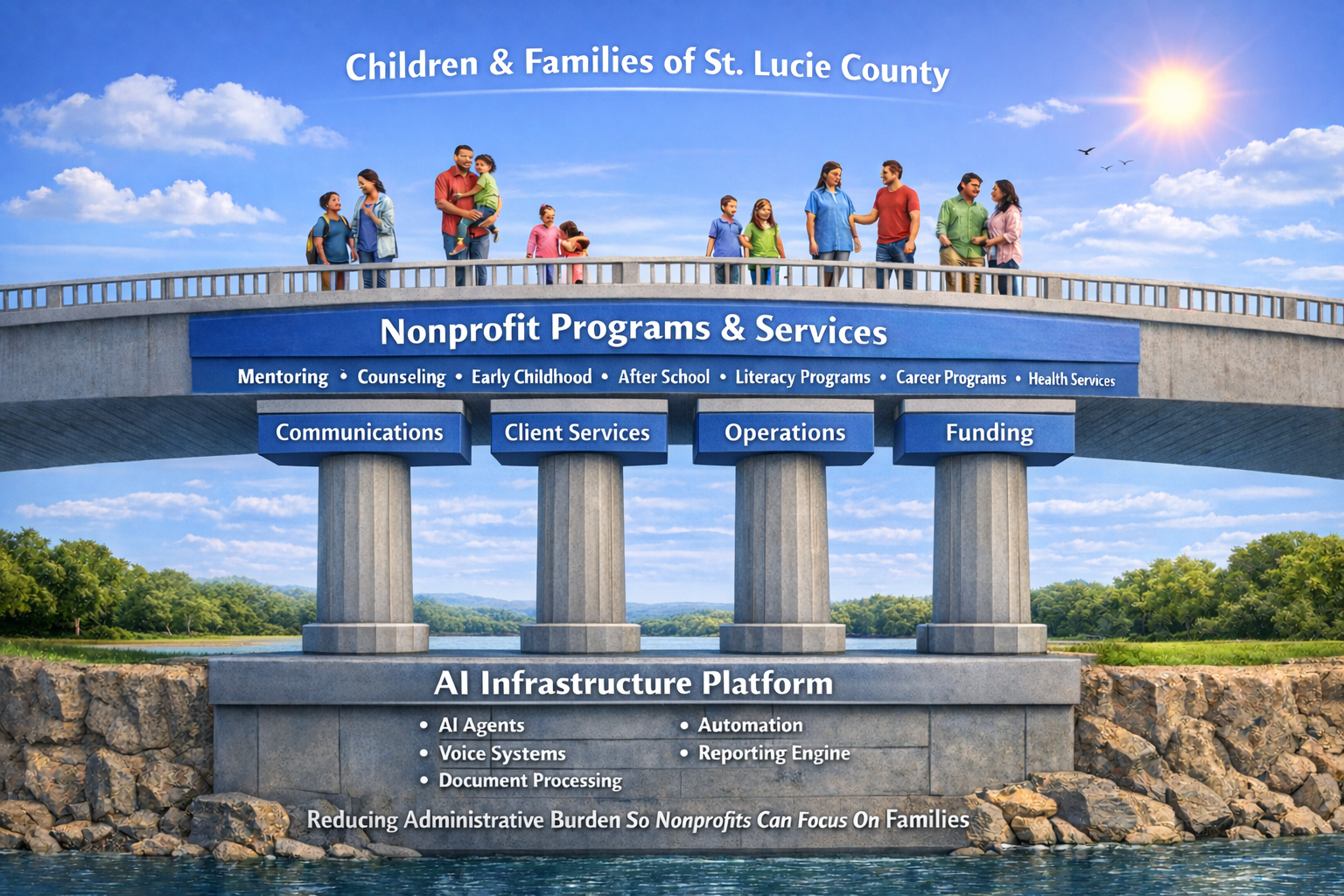
Slide 9 — The Big Insight (Infrastructure Slide)

This is where your bridge diagram goes.

Say something like:

As we worked on these different assistants, we realized something.
Many of these tools share the same data, reporting, communications, and knowledge.
So instead of building isolated tools, we began thinking about a shared system — almost like a digital operating system for nonprofits — that supports communications, client services, operations, funding, and program support.

Then show your bridge diagram:

  • Communications
  • Client Services
  • Operations
  • Funding
  • AI Infrastructure Platform

This is the perfect place for that slide — not earlier.


Slide 10 — Pilot Programs (Very Important)

This slide may be the most important.

Title:

Possible Pilot Projects

Example:

Children’s Services Council

  • Voice FAQ Agent
  • Annual Report Assistant
  • Program Impact Report Assistant

Boys & Girls Club

  • Career Planning App
  • Teen Mentor (JB)
  • Personalized Tutor

Families of the Treasure Coast

  • Parent Coaching Agent
  • Emotional Check-In Mentor
  • Career Discovery Coach

Then finish with:

We would like to explore pilot programs with interested organizations.

That is your call to action.


The Flow In Simple Terms

Your presentation story should feel like this:

  1. Nonprofits are overwhelmed with administrative work
  2. AI assistants can help with operations
  3. Show examples
  4. AI assistants can also help programs and families
  5. Show examples
  6. These tools could eventually work together as a system
  7. We could start with pilot projects

That is a very logical and non-threatening pitch.


Very Important Presentation Tip

During the meeting, you should probably say this sentence at some point:

We are not trying to replace people.
We are trying to reduce administrative burden so staff can spend more time helping children and families.

That sentence is extremely important.


If You Remember Nothing Else, Remember This Flow

The Meeting Storyline

  1. Problem
  2. Administrative AI tools
  3. Demo examples
  4. Program AI tools
  5. Big system idea
  6. Pilot projects

That is your entire strategy.


Final Thought

You are actually not pitching:

  • voice agents
  • tutors
  • grant writers
  • annual report writers

You are pitching:

AI Tools That Help Nonprofits Operate Better and Help Programs Reach More Children and Families.

If you frame it that way, the whole thing makes sense.

Nonprofit AI System Structure

Level 1 – Baseline Toolkit

Used by almost all nonprofits:

  • Website assistant
  • FAQ chatbot
  • Phone agent
  • Intake assistant
  • Scheduling
  • Documents
  • Volunteers
  • Grants
  • Reporting
  • Annual report

Level 2 – Specialized Agents

Depends on organization:

  • Parent coaching
  • Career discovery
  • Emotional check-in
  • Baby care training
  • Mentoring tools
  • Counseling support
  • Education tools
  • Health program tools

So you could say something like:

“We start with a Baseline Toolkit that supports the administrative infrastructure of nonprofits, and then we add specialized agents depending on the organization’s mission.”

Strengthening Nonprofit Operations Through AI Infrastructure

Bullet Points:

  • Nonprofits already do important work in our community
  • Administrative tasks consume significant staff time
  • AI can assist with communications, intake, scheduling, documents, volunteers, grants, and reporting
  • This allows staff to focus more time on programs and families
  • The goal is to strengthen nonprofit operations, not replace people

Communications

AI can:

  • Write website content
  • Write newsletters
  • Write social media posts
  • Write program descriptions
  • Draft emails

Benefit: Staff spend less time writing and more time running programs.

FAQ / Phone

AI can:

  • Answer common phone questions
  • Answer website chat questions
  • Provide hours, locations, eligibility info
  • Take messages after hours

Benefit: Staff receive fewer repetitive phone calls.

Intake & Applications

AI can:

  • Help families complete applications
  • Explain eligibility requirements
  • Reduce incomplete applications
  • Guide users through forms

Benefit: Less staff time correcting paperwork.

Scheduling

AI can:

  • Schedule appointments
  • Send reminders
  • Reschedule appointments
  • Reduce missed appointments

Benefit: Less staff time coordinating calendars.

Documents & Forms

AI can:

  • Summarize reports
  • Explain forms to families
  • Extract information from PDFs
  • Help staff review documents

Benefit: Reduces paperwork time.

Volunteers

AI can:

  • Match volunteers with opportunities
  • Send reminders
  • Track hours
  • Send thank-you messages

Benefit: Easier volunteer coordination.

Grants

AI can:

  • Search for grants
  • Draft grant proposals
  • Draft program descriptions
  • Draft outcome statements

Benefit: Helps nonprofits secure more funding.

Reporting

AI can:

  • Create impact reports
  • Create board reports
  • Create funder reports
  • Create annual reports

Benefit: Saves weeks of report writing.

The goal is not to replace nonprofit staff.
The goal is to give every nonprofit a small team of AI assistants that help with administrative work, communication, reporting, and funding so staff can focus on people instead of paperwork.

Level 1 – Baseline Toolkit – any NPO

  1. Website Content Assistant
  2. FAQ Chat / Voice Agent
  3. Intake Assistant
  4. Scheduling Assistant
  5. Document Assistant
  6. Grant Writing Assistant
  7. Reporting / Annual Report Assistant
  8. Social media writer

Level 2 — Specialized Agents (Mission-Specific)

These depend on what the nonprofit actually does.

Examples:

Organization Type Specialized Agents
Early Childhood Parent Coaching Agent, Baby Care Training
Mentoring Mentor Matching Agent
Counseling Emotional Check-in Agent
Career Programs Career Discovery Coach
Literacy Programs Reading Coach
Health Programs Appointment Follow-Up Agent
Youth Programs Program Engagement Coach
Foster Care Foster Parent Support Agent
Housing Housing Intake Assistant
Food Programs Distribution Scheduling Agent

Baseline Toolkit Agents

Here is a very solid list:

Baseline Agent Purpose
Website & Content Assistant Writes website content, newsletters, program descriptions
FAQ Chat Agent Answers website questions
Phone Voice FAQ Agent Answers common phone questions
Intake / Application Assistant Helps families apply for programs
Scheduling Assistant Books and manages appointments
Document & Form Assistant Explains and summarizes forms and documents
Social Media & Communications Assistant Writes posts and announcements
Volunteer Management Assistant Helps recruit and manage volunteers
Grant Writing & Funding Assistant Helps find and write grants
Reporting & Annual Report Assistant Creates impact reports and annual reports

Need to add Carer Horizons

Social media writer

If you had a free intern, what kind of work would you give that intern that’s what this basic group is like I need to add the social media writer